Editing metadata
Using the Info inspector tab you can edit metadata:
- The name of a media version
- Keywords
- IPTC fields
- Generative AI fields
- Custom Attributes
You can customize what fields are available using the
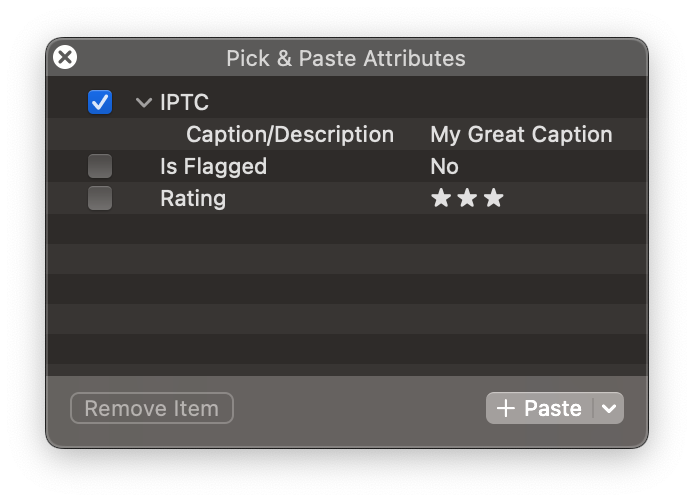
Copying metadata with Pick & Paste
You can use the
Refreshing file metadata
Musebox displays metadata recorded in the library database from when a file is imported, and Musebox automatically updates the database when an app modifies files for media versions in the current view.
When Musebox detects that a media version’s file metadata is out of date (for example, if a file is modified while Musebox isn’t running), it displays the icon on its thumbnail. You can use the
Updating ratings and keywords from files
Modifiable metadata such as ratings and keywords on existing media versions won’t be affected after using Refresh File Status. If you want a media version to use those from its file, select it and use the