Using other apps to process RAW files
You can use Musebox to import and organize your media while using your preferred apps to process RAW files. Use Musebox to open files with your RAW editor, and then import the results back into your library using Musebox’s Spotlight integration.
The most convenient workflow is when double-clicking a RAW file in the Finder opens your favorite editor. Then you can just use Musebox’s
-
Use the Finder to set the default application for all RAW files to your preferred editor.
For example, if you usually edit Nikon NEF files with Nikon NX Studio, set up the Finder so that double-clicking any NEF file opens it with NX Studio.
-
In Musebox, select a RAW photo that you want to edit, and use the
File > Open Original File (⇧⌘O ) menu command.This will open the file as if you’ve double-clicked it in the Finder.
-
Process the image using your RAW editor, and save the processed image to a file (i.e. a JPEG or TIFF).
-
In Musebox, use
File > Import Files (⌘I ) to open the Import window, and selectRecent Media from the sidebar.Musebox will show items found by Spotlight, including the image you just saved with your RAW editor.
-
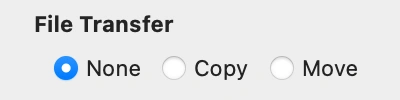
Import the image into Musebox. Use the File Transfer Options in the Import window’s right sidebar to move the file if desired.
Using multiple RAW editors
If you don’t want to use the Finder’s default app to edit the file, use