Getting started
A Musebox library is a collection of boxes. You organize versions of your media files into boxes in the same way that you’d organize printed photos into shoeboxes.
Media versions
When you import a file into a library, Musebox creates an initial version to represent it. You can make multiple versions of a file using the
When you make new versions, Musebox doesn’t create or duplicate any files — the information is saved only in the Musebox library.
Why boxes?
Musebox lets you separate how you need to store files on disk from how you want to organize them. For example, you might keep photos on your Mac’s internal storage but need to keep large videos on an external drive.
Using Musebox you can make a single box named “Cupcakes” that contains both the photos and videos. You’ll be able to access your media from this one box, despite the fact that the files are on different hard drives.
Musebox also lets you relocate files while keeping your organized boxes intact. You can select items and use the
Importing media
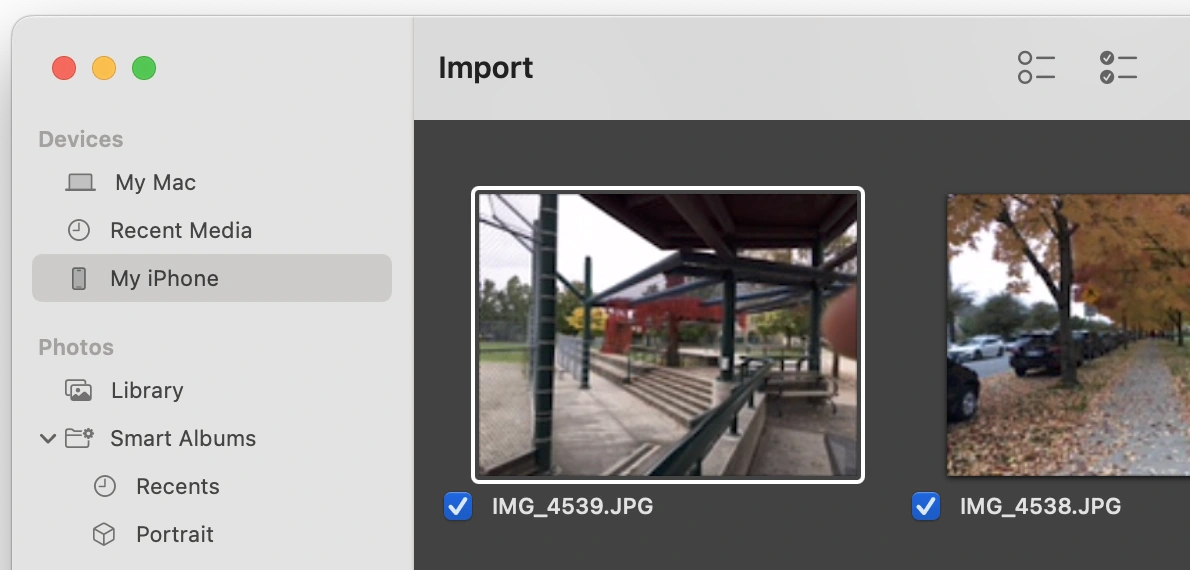
Use the Import window to start adding items to your library.
-
Use the
File > Import Files menu command to show the Import window. -
Select where you want to import files from using the left sidebar
-
Mark the items you want to select by clicking the checkboxes, or use the toolbar button to mark all items.
-
Use the right sidebar’s Destination Box to select what box to put the items in.

-
If importing from a phone or camera device, use the File Transfer Options below that to choose where on your Mac to copy the files to.
-
Click the Import button in the bottom right corner of the window to add the items to Musebox.
Musebox will add the media into the destination box you’ve selected.